2.3. Projects
2.3.1. Create New Project
Click on the “File” icon at the top left corner and select “New Project”.

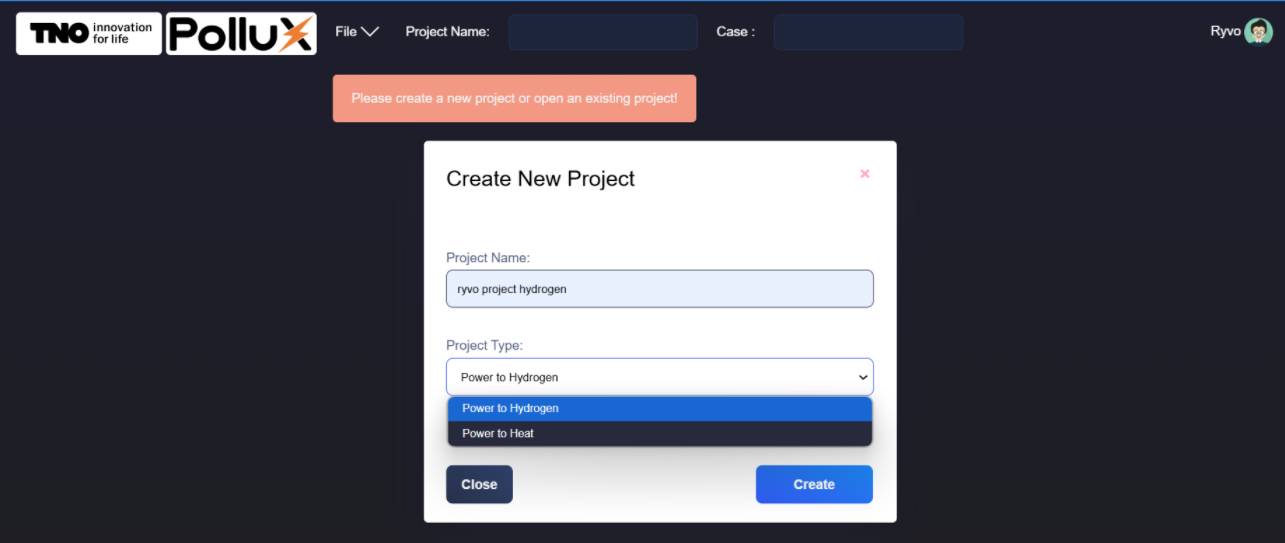
Enter the name of the project. Select P2X type: Power to Hydrogen or Power to Heat
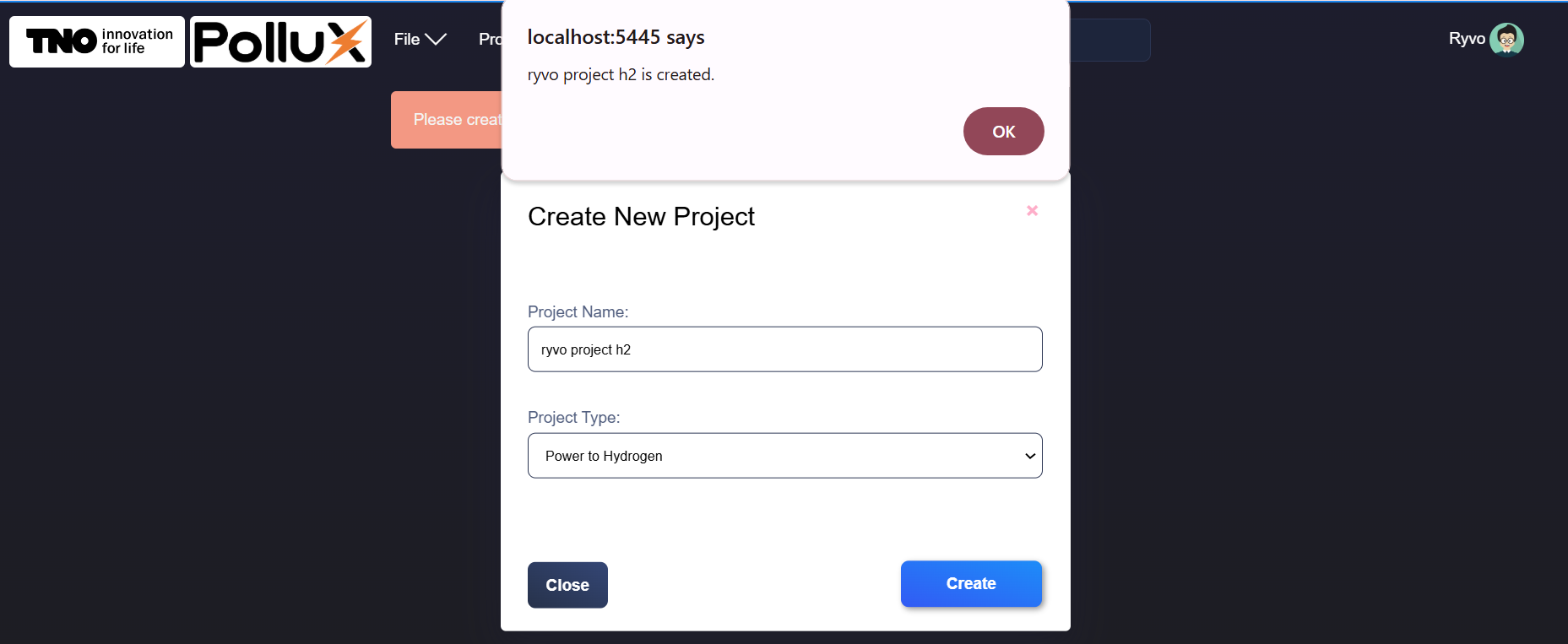
A confirmation message will appear once the project folder is created successfully.
2.3.2. Open Existing Project
Click on the “File” icon at the top left corner and select “Open Project”.
Find the name of the projects that are assigned to your account, select the desired project and click “Open”.

A confirmation message will appear once the selected project is loaded successfully.

2.3.3. Delete Project
Open the project (following the steps in the previous section). Click on the “File” icon at the top left corner and select “Delete Project”.

Confirm the deletion when prompted.

Once confirmed, close the project.
